
Miyoo Mini Plus with games: this is how to get the most out of your MM+ from RetroGear
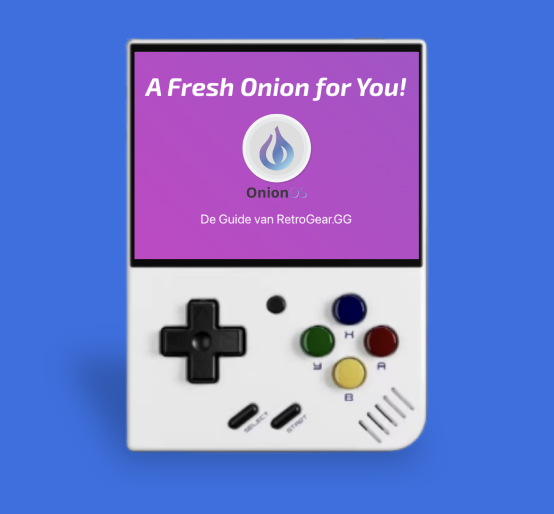
The MM+ Game Guide

Thanks for choosing RetroGear and your new MM+ Miyoo Mini Plus with games setup.
We are big fans of Miyoo and test every Miyoo Mini Plus ourselves before it goes out the door. In this guide, we show you step by step how to put games on your MM+ the legal way and get the most out of your RetroGear handheld.
Important to know right away:
- RetroGear delivers your Miyoo Mini Plus with OnionOS pre-installed, giving you a fine interface right away.
- We do not supply commercial ROMs or illegal games. That is simply not allowed by copyright law and that applies to all serious EU webshops.
- However, we are happy to help you get started with open source and homebrew games that you can legally use.
What are ROMs and what is legal?
A ROM is a file containing a game’s software. That software can:
- Be open source or homebrew (created and released by hobby developers), or
- Commercial and protected (e.g. old Game Boy titles from Nintendo).
Only that first category you can just download and share. For commercial games, the following applies:
- Always buy them yourself and respect the rights of the creators.
- Backups are allowed in some cases, but downloading complete ROM sets of commercial games almost always violates copyright laws.
That’s why RetroGear focuses on legal homebrew and open source games.
RetroGear RG-MIT Collection: starting games legally
To quickly get you started with your MM+ Miyoo Mini Plus with games, we have collected a small selection of open source Game Boy, Game Boy Color and Game Boy Advance games at RetroGear.
This collection:
- Consists of games with a MIT licence or similar open source licence.
- Has been tested by us on the Miyoo Mini Plus with OnionOS.
- Gives you some fun titles to play as soon as you start up your MM+.
You can download the RG-MIT Collection from this link RG- MIT collection
Step 1: Choose the right systems in OnionOS
When you launch your Miyoo Mini Plus for the first time, you will see the OnionOS menu. From there, you can choose which systems you want to make visible on your handheld.
- Start up your MM+.
- From the main menu, go to the package manager / system selection menu.
- At least select these systems:
- Nintendo - GB (Game Boy)
- Nintendo - GBC (Game Boy Color)
- Nintendo - mGBA (Game Boy Advance)
This is how you make sure your MM+ Miyoo Mini Plus is ready for your Game Boy library.

Figure 1 - OnionOS on the Miyoo Mini Plus
Subtitle: Overview of the systems in OnionOS at Miyoo Mini Plus from RetroGear.
Recommended ALT text:MM+ Miyoo Mini Plusmet OnionOS menu en Nintendo systemen geselecteerd
Step 2: Downloading games for you Miyoo Mini Plus
Now it’s time to collect games for your MM+.
2.1 Homebrew and open source games (optional)
We recommend starting with homebrew and open source titles. Think about:
- Small indie projects made specifically for Game Boy and GBA
- Experiments by hobby developers
- Retro-style new games deliberately offered as ROMs
You can often find these on platforms where developers themselves share their work and you can support them directly.
2.2 The RG-MIT Collection of RetroGear
RetroGear has a starter pack ready for you:
- Download the RG-MIT Collection from this link RG- MIT collection
- Unpack the zip file on your computer.
- You are left with a folder called Roms, containing subfolders for each system, such as:
GBGBCGBA
These folders directly match the structure of OnionOS on the Miyoo Mini Plus.
Step 3: Putting games on your MM+ Miyoo Mini Plus
Now we are going to put the games on your microSD card from the Miyoo Mini Plus.
- Turn off your MM+ by holding down the power button at the top right for long.
- Grab the USB card reader from the box of your Miyoo Mini Plus from RetroGear.
- Remove the microSD card from your MM+.
- Insert the microSD into the card reader and connect it to your computer.
- A disk will now appear on your computer, often named RETRO.
Open this disk and you will see a structure like the one below:
Figure 2 - Folder structure of the Miyoo Mini Plus SD card

Subtitle: Main structure of Miyoo Mini Plus Retro microSD card with OnionOS.
Recommended ALT text:Bestandsstructuur RETRO schijf voor Miyoo Mini Plusmet OnionOS mappen
3.1 Replacing the Roms folder
- In the RETRO drive, find the Roms folder.
- Replace this Roms folder with the Roms folder from the RG-MIT Collection you just extracted.
- Just check if the structure looks like this:
RETRO/Roms/GB/Game.gb
RETRO/Roms/GBC/Game.gbc
RETRO/Roms/GBA/Game.gba
Figure 3 - Roms folder with Game Boy games

Subtitle: Sample Roms/GB folder with open source Game Boy games on the Miyoo Mini Plus.
Recommended ALT text:Miyoo Mini PlusRoms map met Game Boy homebrew games
Step 4: Refresh game library on your Miyoo Mini Plus
Once the files are on the SD card, you can put everything back:
- Safely disconnect the RETRO drive from your computer.
- Remove the microSD card from the card reader and insert it back into your Miyoo Mini Plus.
- Restart the MM+.
- In the main menu, press Select.
- You will now be prompted to refresh the game list. Choose Yes or Refresh.
Then go to the Games tab. You will now see the systems you turned on earlier, with behind them the game collection you just put on the SD card.
Congratulations: your MM+ Miyoo Mini Plus with games is now ready to play.
Additional tips from RetroGear for you Miyoo Mini Plus
Since RetroGear and Miyoo are now a regular combination among our customers, we share a few more tips to get the most out of your handheld:
- Save states use
OnionOS makes it easy to save your progress at any time. Ideal for short play sessions on the go. - Homebrew and indie games continue to be discovered
New Game Boy and GBA projects are still coming out. Keep looking from time to time for new open source titles to add to your collection. - Other RetroGear handhelds
Are you ready for something else after the Miyoo Mini Plus? RetroGear also stocks other emulation handhelds and modded Game Boys, all tested and equipped with the same care. - Below you will also find shortcuts for the Miyoo.
Figure 4 - Miyoo Mini Plus shortcuts - cheat sheet

Subtitle: Sample Roms/GB folder with open source Game Boy games on the Miyoo Mini Plus.
Recommended ALT text: Miyoo Mini Plus Roms map met Game Boy homebrew games
Need help with your MM+ Miyoo Mini Plus?
Can’t figure it out or have questions about your Miyoo Mini Plus with games setup from RetroGear?
- Send us a message on Instagram at @retrogear.gg
- Or use the contact options on our website.
We are a small webshop, but we make every effort to give you personalised help.
Did you find this guide useful? If so, we would super appreciate it if you:
- Leave a review with the product Miyoo Mini Plus you bought from RetroGear.
https://retrogear.gg/products/miyoo-mini-plus - And possibly write a review about our service.
https://www.trustpilot.com/review/retrogear.co.uk
Thank you on behalf of the entire RetroGear team and have fun gaming with your MM+ Miyoo Mini Plus!
Jorne - RetroGear